How to Track a PDF: Views, Downloads, Clicks [Best Methods]
PDFs are outdated and lack quite some functionalities that are common on the internet. One of them is capturing data. Here’s how you can Track PDF files and why you should.

“Tracking a PDF” can mean three different things:
- Tracking downloads (someone clicked a PDF link)
- Tracking opens/reads (someone viewed pages, time on page)
- Tracking clicks inside the PDF (they clicked your links)
The catch: once a PDF is downloaded and opened locally, traditional web analytics can’t see what happens inside it. That’s why the best approach depends on how the PDF is delivered (website link vs embedded viewer vs “share link”).
This guide covers the most reliable methods, when to use each, and what you can realistically measure.
We’ve already covered what we think the future of PDF will be and it’s not looking good.
The fact is… PDFs are outdated and lack a lot of functionalities we’re used to having in the online world.
Consumers can’t even check out a PDF file that is responsive on all devices or that is interactive.
Marketers can’t get the data they’re used to and can’t tell stories the way they want to because PDFs are not immersive.
In this article, we’ll dive into how you can get data for your PDF files and we also offer a PDF alternative.
Quick comparison: best ways to track a PDF
| Method | Tracks downloads? | Tracks opens / page views? | Tracks link clicks inside PDF? | Best for |
|---|---|---|---|---|
| GA4 file download event | Yes | No (not after download) | No | PDFs linked on your site |
| Embed PDF in a web viewer + analytics | Sometimes | Yes (viewer events) | Sometimes | On-site reading experience |
| Trackable share-link tools (DocSend-style) | Yes | Yes (engagement metrics) | Varies | Sales decks, proposals, lead magnets |
| UTM/short links inside the PDF | No | No | Yes (clicks to web) | Tracking CTA performance from PDFs |

Method 1: Track PDF downloads on your website (GA4)
If your PDF is linked from a page (e.g., “Download the guide”), you can track that click as a file_download event in Google Analytics 4.
GA4 supports file download tracking through Enhanced Measurement (with caveats), and you can also implement a more controlled setup via Google Tag Manager.
What you’ll see: number of downloads, which pages drove them, source/medium, campaign performance.
What you won’t see: how long someone read, which pages they viewed, what they did after downloading (unless they click a link back to your site).
Best practices (so your tracking isn’t misleading)
- Track downloads as a conversion only if it’s truly a meaningful action (e.g., lead magnet, spec sheet).
- Add UTMs to the page that links the PDF (so you can attribute campaigns cleanly).
- If your PDF is also indexed in Google and opened directly, file-download events may not capture those opens; you’ll need a different approach (see Method 2 or 3).
Method 2: Track PDF reads when the PDF is embedded on a webpage
If you embed the PDF in a web viewer, you can track in-viewer activity (scroll depth, page changes, time engaged) much more like a normal web page.
A common implementation path is Adobe’s PDF Embed API, which supports sending PDF analytics events to GA4 by passing a GA4 Measurement ID.
Pros
- You can measure reading behavior (not just “downloaded”).
- Great for content hubs, reports, brochures you want people to read online.
Cons
- If users download the PDF and read offline, you still can’t see that.
- Requires embedding setup (and sometimes analytics configuration).
Method 3: Track opens and engagement with a trackable PDF share link
If you need “who opened it” + engagement (and you’re okay with a platform sitting between you and the PDF), use a document tracking/share platform.
These tools typically:
- host the PDF or create a trackable web-view version
- record opens, time viewed, sometimes per-page engagement
- optionally gate access (email capture) or require authentication
This approach is commonly described in “PDF tracking” guides from document platforms like FlippingBook.
Best for
- sales collateral (decks, proposals)
- investor updates
- gated lead magnets
- internal docs where engagement proof matters
Important note: be transparent about tracking where required, and pay attention to privacy rules (see the privacy section below).
Method 4: Track clicks inside the PDF (UTM links + short links)
Even if you can’t track offline opens, you can track what people click from the PDF back to the web.
The simplest tactic: UTM-tagged links
Add UTM parameters to links inside the PDF (e.g., your CTA button links)
When someone clicks, GA4 will attribute sessions to your campaign/source
Cleaner tactic: short links (Bitly-style) or vanity redirects
A short link can make long UTMs readable and gives you an extra analytics layer (click counts) outside GA. Bitly explains tracking links and why they’re useful for measuring campaign performance.
Best practice: use one tracking link per CTA (and label them), so you know which section/page drove clicks.
Recommended tool stack (by goal)
| Your goal | Best approach | Why it works |
|---|---|---|
| Track how many people download a PDF from your site | GA4 file_download (Enhanced Measurement or GTM) | Reliable for on-site clicks to PDF files |
| Track reading behavior (pages, engagement) on your site | Embed viewer analytics (e.g., PDF Embed API + GA4) | Captures in-viewer events and engagement signals |
| Track opens and engagement for shared PDFs | Trackable share-link platform | Designed for “open tracking” and engagement reporting |
| Track which links people click inside the PDF | UTM links + short links | Tracks what matters most: actions taken after reading |
How to track PDF files
PDF files in and of themselves don’t offer the option to gather data.
As a marketer, you will only know who downloaded your PDF (if your content offer is gated), but you will not be able to find out if the person actually opened your PDF, if the PDF got shared, how many pages the person has read, how long they have been browsing on a given page, etc.
If you want to get some of that data, you will need additional software.
Track PDF files with HubSpot
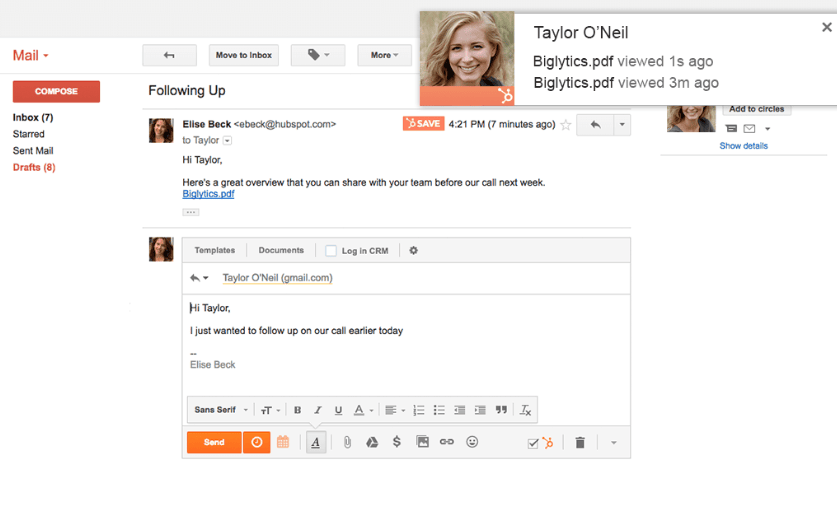
If you’re using HubSpot as your CRM, you’re in luck. With HubSpot, you can host your PDF on your HubSpot domain and under ‘sales tool’ -> ‘documents’ you can get additional data on your file. Here’s how document tracking with HubSpot works.
As you can see. It’s not perfect. It does not come near the PDF alternative we’ll be discussing in a bit.
Track PDF files with additional software
A second option for getting some PDF data is to opt-in for additional software.
One example is Locklizard which promises to help you get data on PDF open, views, and even prints.
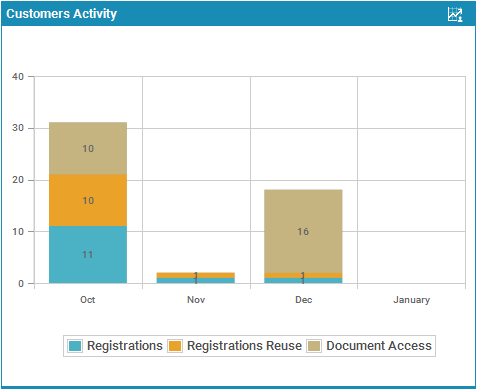
Source: Locklizard
I’m sure there is more such software that offers to help. The big question is:
If PDF is an inferior format for marketers, would you like to invest more to try to upgrade it by a tiny bit or would you just choose a better format?
Say goodbye to PDFs and hello to alternatives
Let’s first take a broader look at PDFs again before diving into tracking capabilities.
You can stay loyal to PDFs and try to buy new software to get solve for all the incapabilities, but you would need deep pockets and a lot of time and effort to link all the tech solutions together.
Instead, why not opt in for an HTML5-based solution where you can create white papers, brochures, magazines, proposals, anything you could with a PDF, but better! More engaging, more immersive, more data, and faster because of the built-in templates.
Foleon (and competitors) offer such solutions. The reason they exist is to offer consumers an amazing web experience and marketers the tools they need to create them.
Now let’s dive back into data capturing.
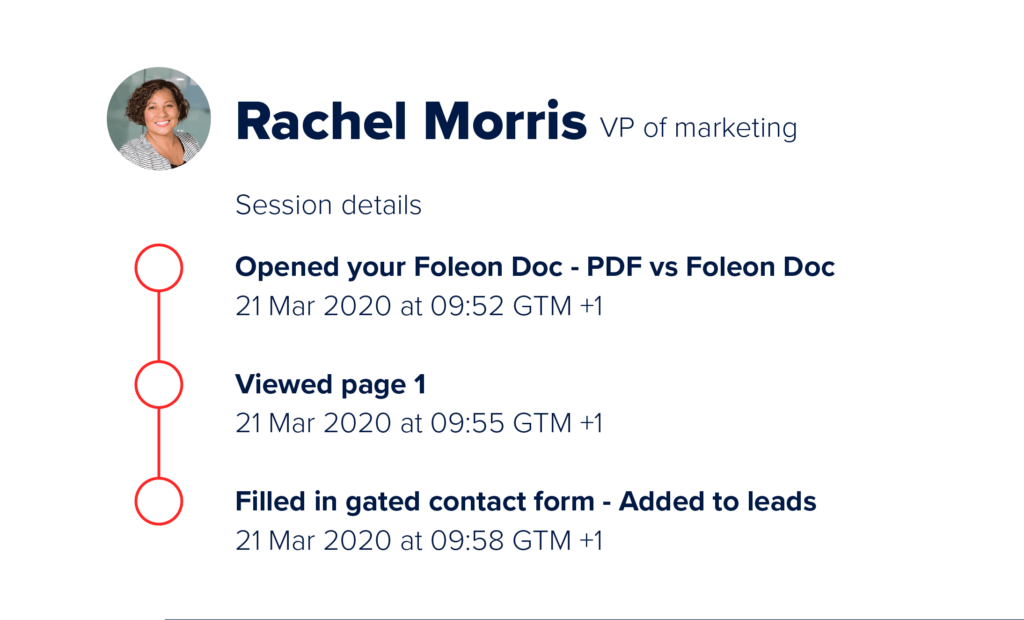
Foleon (and competitors) got you covered. They have data capture built into their software. Bye-bye vanity metrics and hello informed decisions.
By switching to a better format, you’ll be better equipped to retarget people based on real interest, hand MQLs and SQLs over to sales based on real engagement, and much more! You can even add mid-gates as an alternative to gated content offers and get data there.
How to Convert PDF Document to JPG
Converting a PDF document to JPG is a handy trick to have up your sleeve. Whether you’re creating a visual presentation, sharing an image-friendly file, or extracting a single page from a PDF, turning it into a JPG format makes it easier to use in different applications.
Here’s how to Convert PDF Document to JPG. Let’s jump in!
Why Convert PDF Documents to JPG?
PDFs are excellent for preserving content and layout, but they aren’t always the best format for sharing or editing images. JPG files, on the other hand, are universally compatible, lightweight, and perfect for visual content. By converting a PDF document to JPG, you can:
- Extract images from a PDF.
- Share single pages as photos.
- Use PDF content in social media posts, presentations, or design software.
Methods to Convert PDF Document to JPG
Here are some simple and effective methods to convert your PDF files into JPG images.
1. Using Online Tools
Online converters are an excellent option if you want a quick, hassle-free solution.
Steps:
- Choose an Online Tool
Websites like ILovePDF, and PDF2JPG make this process simple. - Upload Your PDF File
Drag and drop your PDF into the upload box or click to select the file. - Select Conversion Options
Some tools allow you to extract all pages as separate JPGs or save the entire PDF as a single image. - Download the JPGs
Once the conversion is complete, save the images to your device.
Pro Tip: Be cautious when using online tools if your PDF contains sensitive information.
2. Using Adobe Acrobat Pro
Adobe Acrobat Pro makes converting PDF documents to JPGs seamless. Here’s how:
- Open the PDF in Adobe Acrobat Pro.
- Click on File > Export To > Image > JPEG.
- Choose the folder where you want to save the file.
- Adjust settings (e.g., resolution, color settings) if needed, then hit Save.
This method works well for high-quality conversions, especially for graphics or text-heavy PDFs.
3. Using Desktop Software
If you prefer offline tools, desktop software like Nitro Pro, Wondershare PDFelement, or Able2Extract Professional can help.
Steps:
- Open the software and load your PDF.
- Select the export or save-as option and choose JPG as the output format.
- Customize settings, like image resolution or file naming conventions.
- Save the images to your desired folder.
Desktop tools often offer batch processing, making them ideal if you’re working with multiple PDFs.
4. Using Built-In Features (Windows or Mac)
For Windows:
- Use Microsoft’s built-in Snipping Tool or third-party screenshot software to capture specific pages as JPGs.
- Alternatively, print the PDF to a virtual printer like Microsoft Print to PDF and choose JPG as the output format.
For Mac:
- Open the PDF in Preview.
- Select File > Export and choose JPG as the format.
- Save the file to your preferred location.
Tips for Smooth Conversions
- Optimize Resolution: For high-quality images, choose a higher DPI (dots per inch) setting during conversion.
- Check File Size: JPG files can sometimes become large if the resolution is high. Compress the image afterward if needed.
- Convert Select Pages: If you don’t need the entire PDF, most tools allow you to extract specific pages for conversion.
Frequently Asked Questions
1. Can I Convert PDF to JPG for Free?
Yes! Many online tools like Smallpdf, ILovePDF, and PDF2JPG offer free conversion services. Some may have limits on file size or number of conversions.
2. Which Tool Offers the Best Quality?
Adobe Acrobat Pro provides excellent quality with customizable settings. For free options, Smallpdf and ILovePDF are reliable.
3. How Can I Convert a Scanned PDF to JPG?
Scanned PDFs may require an OCR (Optical Character Recognition) tool for accurate image extraction. Adobe Acrobat Pro or tools like ABBYY FineReader handle this well.
Converting a PDF document to JPG is easier than ever with the variety of tools available today. Whether you prefer quick online solutions or powerful desktop software, there’s a method to suit every need.
Try one of the methods mentioned here, and turn your PDFs into high-quality JPGs in no time. Whether it’s for sharing, editing, or designing, this simple process ensures your content is always ready to shine.
Privacy and compliance notes (don’t skip this)
PDF tracking can involve personal data (IP address, email identity, device details), depending on the method and tool.
If you operate in the EU/UK or target those users:
- be careful with “silent” tracking without notice
- ensure your cookie/consent approach aligns with your analytics setup
- pick vendors that provide clear data processing terms
Also, if you use platforms that track named viewers (e.g., via email-gated access), you’ll typically need clear disclosure and a lawful basis for processing.
Conclusion
PDFs don’t offer the possibility to track and gather data. If you still want to use PDFs and get some insights, there are additional software you could link to them. Our question is why bother trying to keep an outdated format alive while there are more attractive alternatives for modern marketers? You’ll solve the tracking problem, but you still won’t be able to easily create responsive PDFs, create immersive experiences, and much more.
We hope the options above give you some food for thought and wish you all the best in creating awesome content!
FAQ
What is a PDF (Portable Document Format)?
A PDF, or Portable Document Format, is a file format developed by Adobe that preserves the layout and formatting of a document, making it ideal for sharing and printing.
How do I open a PDF file?
You can open a PDF file using various applications such as Adobe Acrobat Reader, web browsers, or third-party PDF readers available for different platforms.
Can I create a PDF file from other document formats?
Yes, you can create PDF files from various document formats by using PDF conversion software or built-in features in many applications.
What are the advantages of using PDF files for document sharing?
PDF files maintain document formatting across different devices and operating systems, ensuring consistent viewing and printing.
How can I edit a PDF file?
PDF files can be edited using specialized PDF editors like Adobe Acrobat Pro or online PDF editing tools, but some editing limitations may apply depending on the software.
Is it possible to password-protect a PDF file?
Yes, you can add password protection to a PDF file to restrict access, editing, or printing. Many PDF editing tools offer this feature.
Can I convert a PDF back into its original document format?
PDFs can be converted back to their original formats using PDF to Word converters or other conversion tools, but the accuracy of conversion may vary.
What are PDF annotations, and how can I add them to a PDF document?
PDF annotations are comments, highlights, or notes added to a PDF. Most PDF readers provide annotation tools for adding comments or markup to documents.
Are PDF files compatible with mobile devices and smartphones?
Yes, PDF files are compatible with mobile devices, and many mobile apps offer PDF viewing and editing capabilities.
Is there a difference between PDF and PDF/A formats?
Yes, PDF/A is a specific subset of PDF designed for long-term archiving of electronic documents, ensuring that content remains accessible and unchanged over time.
What are the common uses of PDF files in various industries?
PDF files are widely used for reports, contracts, manuals, brochures, forms, and documents across industries such as legal, healthcare, education, and publishing.
Can I merge multiple PDF files into one document?
Yes, you can merge multiple PDF files into a single document using PDF editing software or online PDF merger tools.
How can I reduce the file size of a large PDF document?
To reduce the file size of a PDF, you can use compression tools or adjust settings while saving the PDF to reduce image quality or remove unnecessary elements.
What is the difference between PDF and PDF/X formats, and when is PDF/X used?
PDF/X is a format specialized for printing, ensuring that a PDF is print-ready. It includes specific standards for color management and fonts, making it suitable for prepress workflows.
Are there accessibility standards for PDF documents to ensure they are usable by individuals with disabilities?
Yes, PDF documents can be made accessible by following standards like PDF/UA (Universal Accessibility), which ensures compatibility with screen readers and other assistive technologies.
How can I convert scanned images or paper documents into searchable PDFs?
You can use Optical Character Recognition (OCR) software to convert scanned images or paper documents into searchable and selectable text in a PDF.
Is it possible to digitally sign a PDF document?
Yes, you can digitally sign PDF documents using digital signature certificates or electronic signature services to verify the authenticity and integrity of the content.
What are the security features available for PDF documents?
PDF documents can be secured with password protection, encryption, and digital signatures to control access and ensure data integrity.
Can I embed multimedia elements like audio and video in a PDF document?
Yes, PDF documents can include multimedia elements like audio and video, making them interactive and suitable for presentations and e-books.
How do I convert a web page or webpage content into a PDF file?
You can convert a web page or its content into a PDF file using browser extensions or PDF conversion tools, allowing you to save web content for offline use or sharing.
Other related articles
Check out our latest Content
Articles, Images, Videos, and more!
Get a Christian Coloring Book this Christmas
Never get Stuck – Ask the AI Buddy Anything
Convert Text into any Case
Pros and Cons of Shopping
Epic YT Title Examples
Earn $2000 a month!
Latest Videos